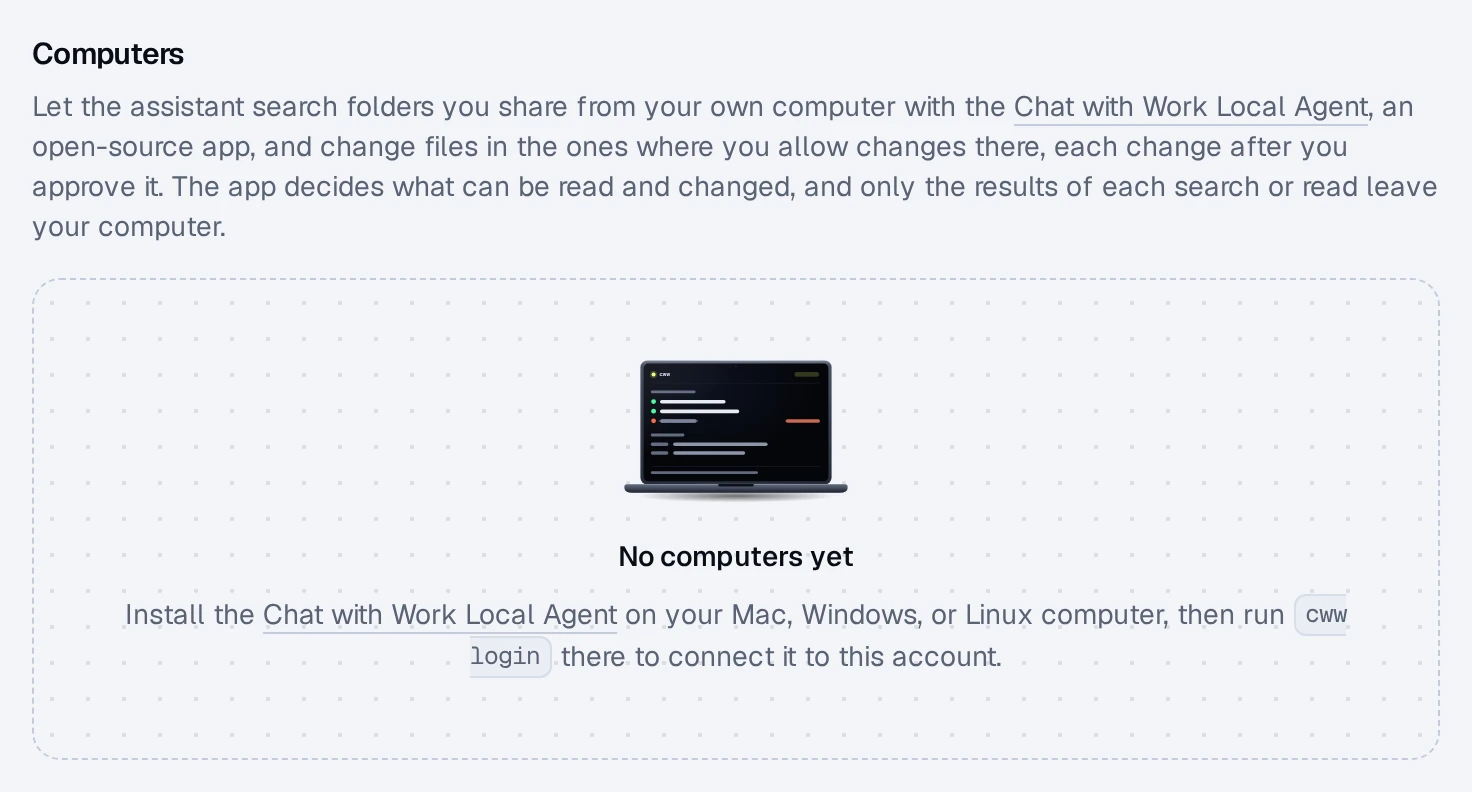
The Chat with Work Local Agent is a small open-source program, cww, that lets the assistant search folders you share from your own Mac, Windows, or Linux computer. The Local Agent decides what can be read and changed, and only the results of each search or read leave your computer. Its source is at github.com/crmne/chatwithwork-local-agent.
Install it
- macOS:
brew install crmne/tap/cww - Windows: WinGet
- Arch Linux: the PKGBUILD, with
makepkg -si - Debian and Ubuntu: the
.debpackage - Fedora and openSUSE: the
.rpmpackage
The install guide with every command is at github.com/crmne/chatwithwork-local-agent#install.
Share a folder and connect
- Share the folders it may read, for example
cww roots add ~/Documents/Work. Nothing else on the computer is shared. - Run
cww login. - On the connect page it opens, confirm the code it shows, and confirm it's you with your password, Google, or a code we email you.
The computer joins the organization the page is open in. It then runs in the background and at every login, and the assistant can use it while it's online. Guests can't connect computers.
File changes, only where you allow them
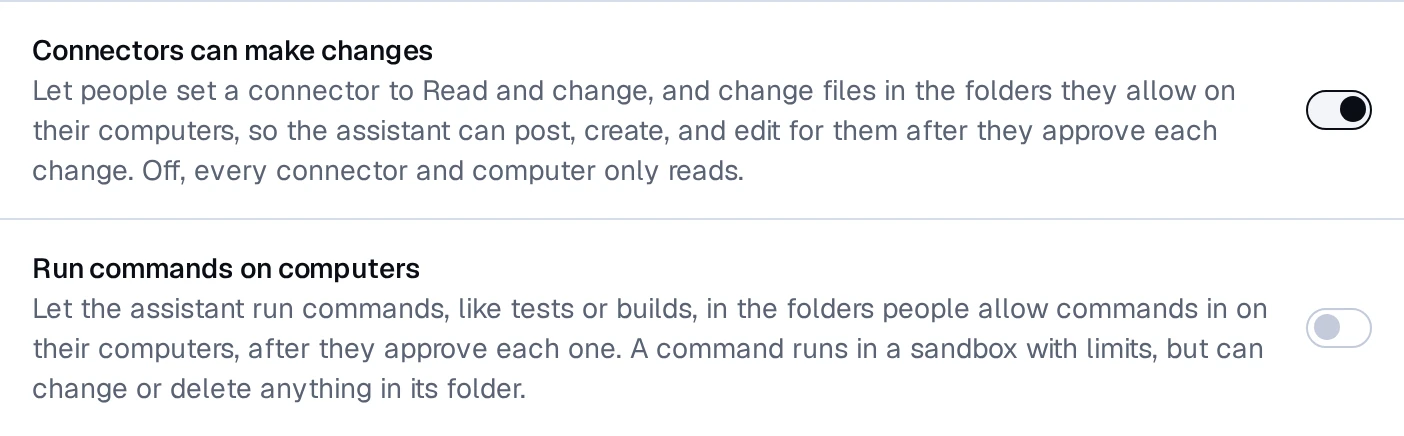
Shared folders are read-only. To let the assistant change files in one, allow it on the computer itself, with cww roots allow-changes or the Allow changes switch in the Local Agent's app. It can't be turned on from the website. Even then:
- each change waits for your approval in the chat, with the text or the difference it will make;
- what a change replaces or deletes goes to that computer's trash;
- owners and admins can turn changes off for the organization (Connectors can make changes in Settings ▸ People).
Commands, only if you opt in
The assistant can also run commands, like tests or builds, in a folder, on Mac and Linux. This needs three things: an owner or admin turns on Run commands on computers in Settings ▸ People, the folder allows changes, and you allow commands in it on the computer (cww roots allow-commands). Each command runs in a sandbox limited to that folder, without network unless you allowed it, and always asks first. A command can change or delete anything in its folder, and what it deletes doesn't go to the trash.
Chats from the terminal
cww tui shows your chats beside your folders, lets you ask, and lets you approve or deny changes. When connecting, keep Also let the app use your chats checked, or allow it later in Settings.
Manage your computers
Settings ▸ Connectors ▸ Computers lists each computer with Pause, Disconnect, and Turn off chats, plus an activity log of what the assistant asked for, without file contents.
Questions? Click the chat bubble in the corner of the app, or write to support@chatwithwork.com.