Chat with Work Desktop is the open-source desktop app for Mac, Windows, and Linux. It opens Chat with Work in a window of its own, keeps an icon in your menu bar, notification area, or tray, and runs cww in the background, which lets your chats and bots work with the folders you share on your computer. cww decides what can be read and changed, and only the results of each search or read leave your computer. Its source is at github.com/crmne/chatwithwork-desktop.
Install it
- macOS:
brew install --cask crmne/tap/chat-with-work, or the.dmgfrom the latest release - Windows: the
.msifrom the latest release (WinGet is coming) - Arch Linux:
yay -S chatwithwork-desktop-binfrom the AUR - Debian and Ubuntu: the
.debpackage - Fedora:
sudo dnf copr enable paolino/chatwithwork-desktop, thensudo dnf install chatwithwork-desktop, or the.rpmpackage - NixOS and Nix:
nix profile install github:crmne/chatwithwork-desktop - openSUSE Tumbleweed and Leap 16.0:
zypper install chatwithwork-desktopfrom thehome:plentyrepository - Any Mac or Linux: the one-line installer, or Homebrew (
brew install crmne/tap/cww)
Each one installs the app, Chat with Work in your applications, and the cww command. The Mac app from the .dmg and the Windows app update themselves: they check once a day, download a new version in the background, and install it when you choose Restart to Update. Package managers update the copies they installed. The install guide with every option is at github.com/crmne/chatwithwork-desktop#install.
Share a folder and connect
Settings ▸ Integrations ▸ Connect a computer walks you through it in three steps: download and sign in, choose folders to share (or none), and whether Chat with Work may run commands there. Chat with Work thinks on our servers in the EU; your files and commands stay on your computer. The page moves on by itself once your computer is connected, and inside the app it shows your folders, which the app asks you about before sharing anything. Step by step:
- Open Chat with Work. Its settings, from the menu bar, notification area, or tray icon, pair the computer and choose the folders to share. From a terminal,
cww roots add ~/Documents/Workshares a folder andcww loginpairs. Nothing you don't share is readable. - On the connect page that opens, confirm the code it shows, and confirm it's you with your password, Google, or a code we email you.
The computer joins the organization the page is open in. cww then runs in the background and at every login, and the assistant can use the computer while it's online. Closing the app's window doesn't stop it. Guests can't connect computers.
Open links in the app
Links to chats, Decisions, bots, and projects can open in the app instead of your browser. The first time one arrives in a browser on a computer with the app, you're asked. Say yes, and from then on that browser opens links there, with Open in browser beside it for any one of them.
Change it for each browser in Settings ▸ Notifications ▸ Links. Links you follow inside Chat with Work stay where they are.
File changes, only where you allow them
Shared folders are read-only. To let the assistant change files in one, allow it on the computer itself, with the Allow changes switch in the app's settings or cww roots allow-changes. It can't be turned on from the website. Even then:
- each change waits for your approval in the chat, with the text or the difference it will make;
- what a change replaces or deletes goes to that computer's trash;
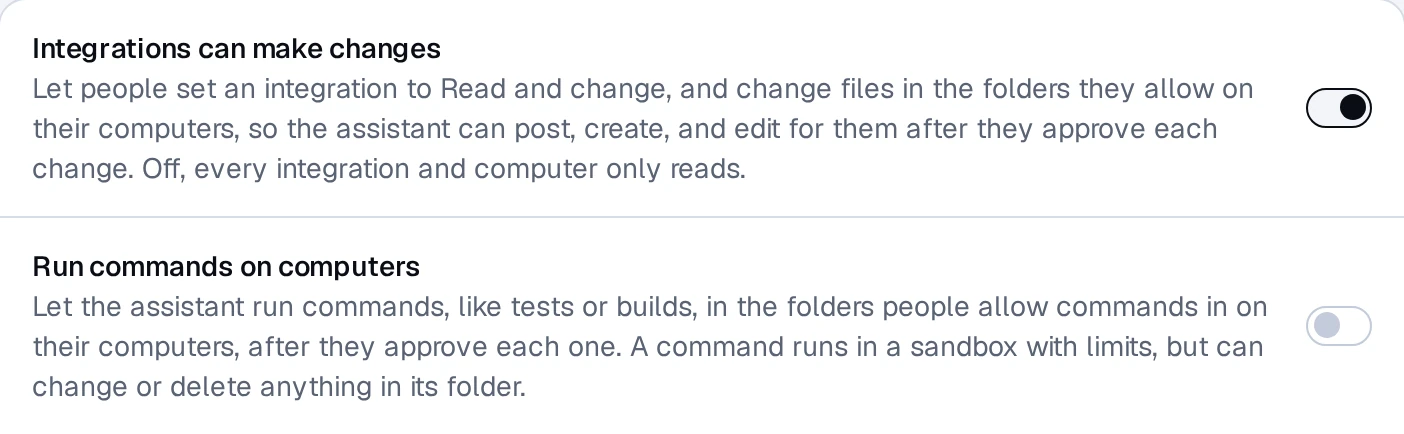
- owners and admins can turn changes off for the organization (Integrations can make changes in Settings ▸ Organization).
Commands, only if you opt in
The assistant can also run commands, like tests or builds, in a folder, on Mac, Linux, and Windows 11 24H2 and later. This needs three things: an owner or admin turns on Run commands on computers in Settings ▸ Organization, the folder allows changes, and you allow commands in it on the computer (cww roots allow-commands). Each command runs in a sandbox limited to that folder. What it may reach is the folder's Network setting on the computer: Local services by default on Mac and Linux (your computer's own databases and servers, such as a PostgreSQL in Docker, never other computers or the internet; Windows has none), Local services and the internet where you turned Internet on, or None. When the sandbox on Linux stops a command reaching something, the step says what it couldn't reach, and a card in Decisions asks you: Always allow on your computer, Once, or Deny. Allowing asks once more in Chat with Work Desktop on that computer, which alone widens it. Each command asks first: you approve it in the chat, on the web or in any of the apps, unless you chose Allow everything for that chat, which runs commands without asking too. Your computer decides where commands may run, folder by folder. If you press Always allow on your computer on a bot's command card, that bot's commands in that folder run without asking from then on: your computer shows a notice, and you turn it off there at any time. A command can change or delete anything in its folder, and what it deletes doesn't go to the trash.
On Windows, commands run in Windows PowerShell. Node.js and the Command Prompt's dir look at the top of the drive first, which Windows keeps from sandboxes: to let them run, an administrator allows it once, with Allow… under your folders in the app, or cww roots prepare-commands. Sandboxed programs can then see the drive's own details, never what's in it.
Printing
The assistant can print a PDF from a chat's files on your computer's printers, on Mac, Windows, and Linux (with CUPS). Choose which ones on the computer: Settings ▸ This computer ▸ Printers in the app (or cww printers add) for your chats, and Share this computer with a bot, on the bot's page (or cww printers share), for that bot. The website can't add one.
Every job asks first, in every permission mode: its card in the chat shows the file, pages, copies, and printer. Only a shared bot can print without asking, and only after the computer's owner turns on Unattended printing for that printer on the bot's page in the app, then presses Always allow for the bot on one of its print cards.
Only the approved PDF is sent, and deleted once printed. A computer prints at most 200 pages a day. To cancel a job, use your computer's print queue. To stop printing, turn the printer off in Printers (cww printers remove), or for a bot, in Share this computer with it (cww printers unshare). Owners and admins turn it off for the organization with Integrations can make changes.
Working on code
Your computer is where the assistant works on a project you share: the answers come from Chat with Work, and the files stay where they are.
- It searches the code in a shared folder by what it says and finds files by name, skipping what your
.gitignoreleaves out. - A change across several files comes as one card, with the difference for each file. You approve it once, and it's made all or not at all.
- Reading a big project uses up the folder's hourly reading allowance sooner. Raise it for that folder on the computer, with
cww roots read-budget; it can't be changed from the website. - When a file is needed in the chat, to make something from it or send it to another service, the assistant copies that one file into the chat's files, up to 25 MB. Nothing else from your computer is copied.
Your own ChatGPT plan
If you pay for ChatGPT, your chats can answer on your plan instead of credits. Codex, signed in on your computer with your own ChatGPT account, does the thinking through Chat with Work Desktop. Chat with Work still runs every tool here, with the same approvals as any model.
- An owner or admin turns on Own ChatGPT plans in Settings ▸ Organization. It's off by default.
- Install Codex on your computer and sign in there with your ChatGPT account. Chat with Work never sees that sign-in.
- In the model picker, under Your plans, on your computers, choose Allow, then say yes in the dialog on your computer.
Before you turn it on: answers count toward your ChatGPT plan's limits, not your credits. What you ask, the chat so far, and what tools read for you go to OpenAI, outside the EU, under your own account, and outside our data processing terms. In a project chat, that includes what other people wrote. Plus and Pro accounts are used for training unless you turned that off in ChatGPT.
For now it runs on Linux computers: on a Mac, Codex can't start inside the app's sandbox yet, so the picker doesn't offer it there.
It's only for you. It answers in chats you drive and for your own bots that run at a time. A shared bot, a run an event started, or a bot that hears from someone outside can't use it, since OpenAI's terms don't let you make your account available to anyone else.
Chats from the terminal
The app's window is Chat with Work itself, so your chats are there. In a terminal, cww tui shows your chats beside your folders, lets you ask, and lets you approve or deny changes. When connecting, keep Also let the app use your chats checked, or allow it later in Settings.
Bots from the terminal
cww bots makes and manages your bots from a terminal, for you or for an agent you run there. Run cww login --bots, or run cww bots list and allow it under Settings, Computers. It's a separate permission from folders and chats, you can turn it off there anytime, and anything running on that computer can use it. It does what you could do on the Bots page, as you, in that organization: cww bots recipes lists what you can start from, cww bots create --recipe KEY makes one, and update, pause, resume, delete, and run do the rest. --org picks another organization you've signed in to, and --json is for programs. Making a bot uses no credits. cww bots run tries it, changing nothing, and uses your credits like a chat. Secrets never go through the command: add them on the bot's page.
Manage your computers
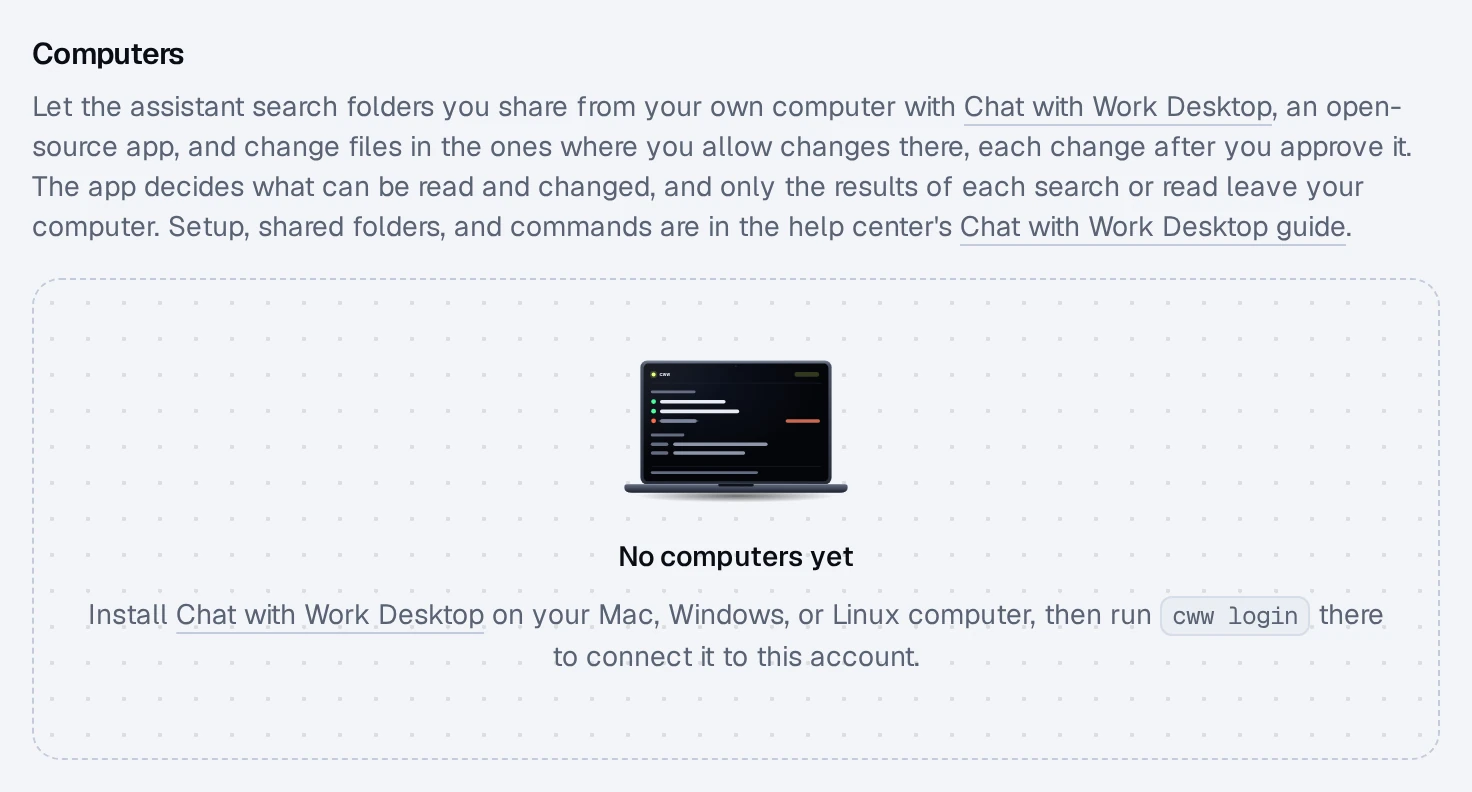
Settings ▸ Integrations ▸ Computers lists each computer with Pause, Disconnect, and Turn off chats, plus an activity log of what the assistant asked for, without file contents.
Questions? Click the chat bubble in the corner of the app, or write to support@chatwithwork.com.