The assistant never changes anything in your tools on its own. A change can only happen on a connector you set to Read and change, and even then each one waits for you.
The approval card
When the assistant wants to make a change, the answer pauses and an approval card appears in the chat. Above the composer you'll see "Waiting for your approval. Review", which takes you to it. The card shows:
- the service, and which account if you connected several;
- one line saying what it will do, such as "Post a message to #general";
- a preview of exactly what will be written: the message, the email, the event, or the file.
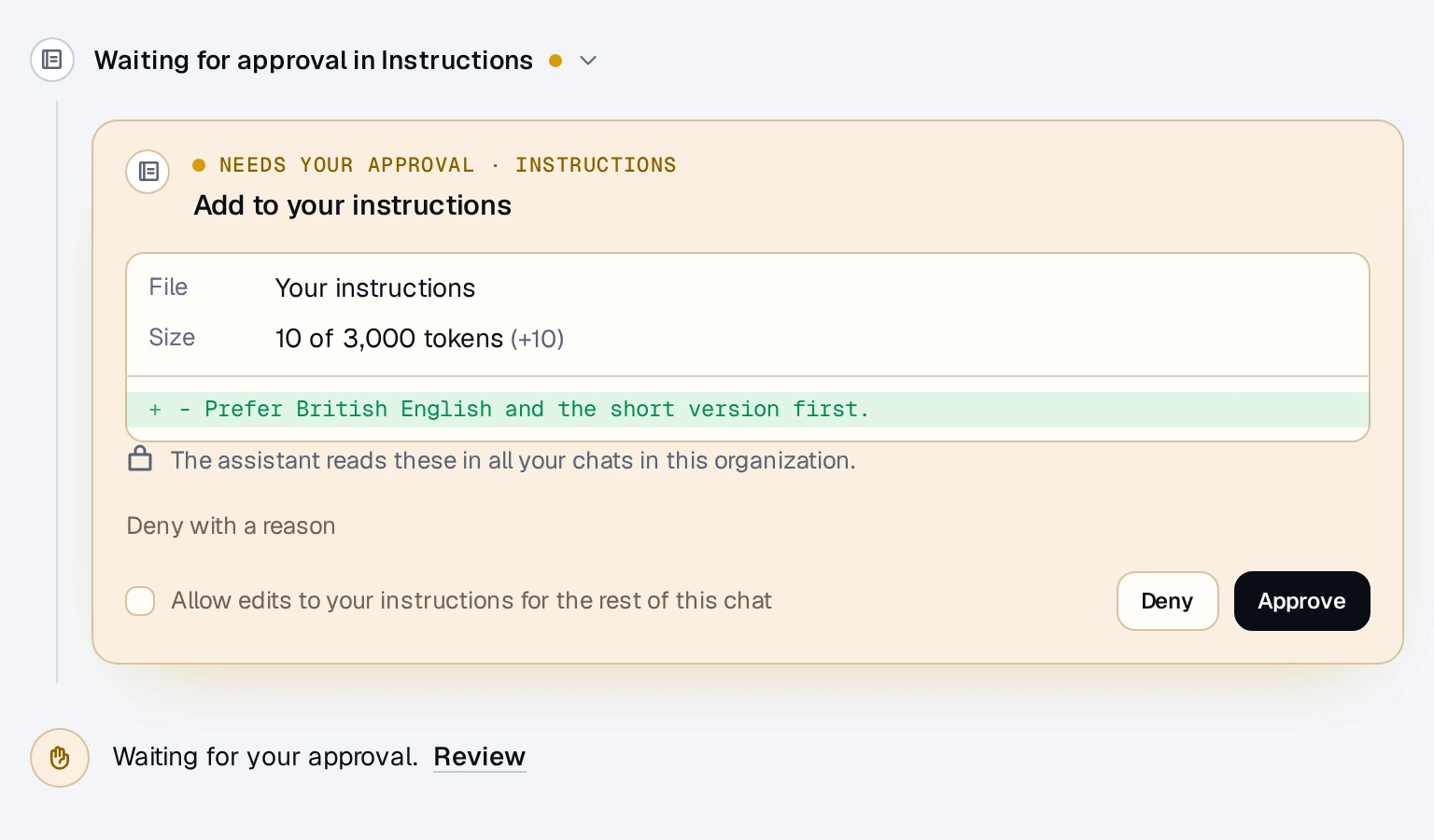
Click Approve and it runs exactly as shown. The answer then carries on. Nothing is spent while a card waits.
If you're not looking at the chat when it stops for you, Chat with Work can notify you. Choose how in Settings ▸ Notifications.
Deny, with a reason if you like
Click Deny to stop it. To steer the assistant, open Deny with a reason first and say what to do instead, for example "Send it to Ana, not the whole channel." The reason goes back to the assistant, which is told not to try the same change again unless you ask.
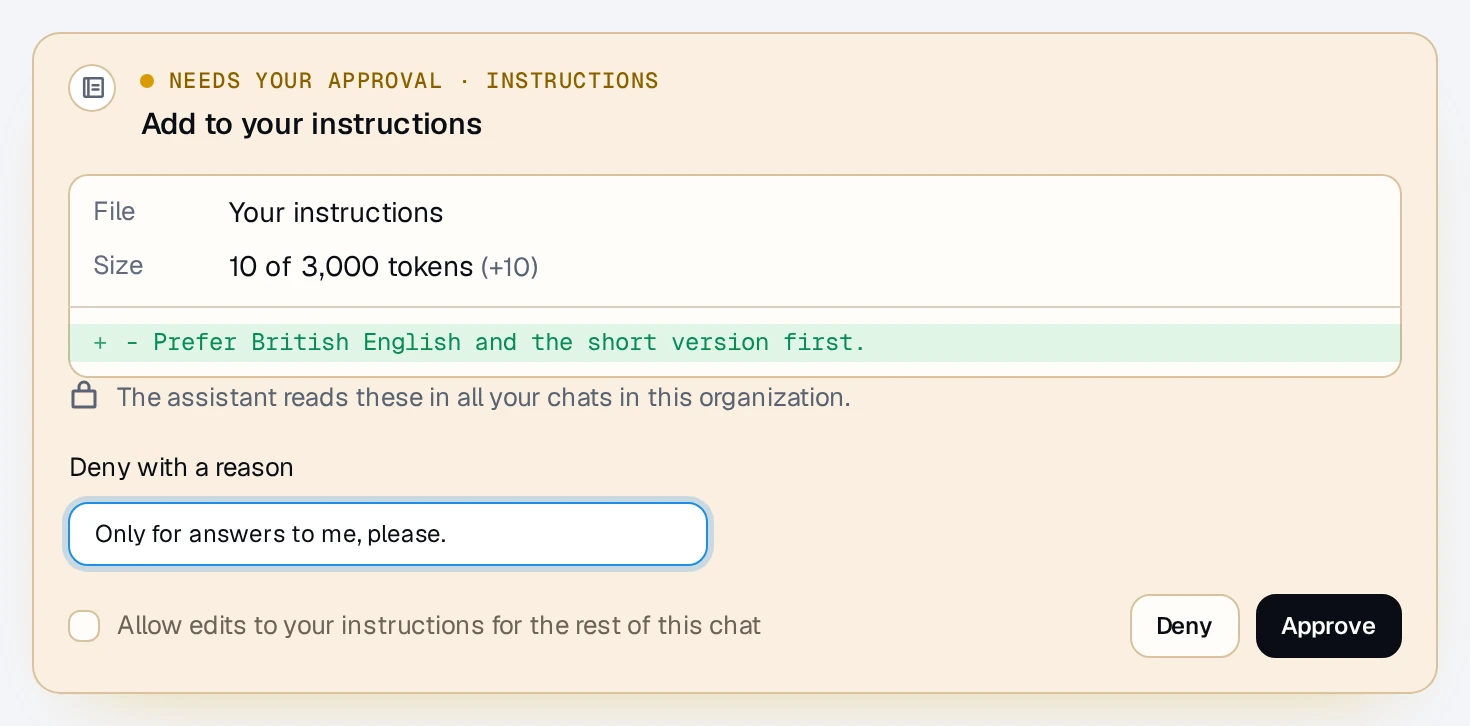
You can also just ask something else. The waiting change is then passed over.
Allow it for the rest of this chat
For an ordinary change, like posting a message or creating a file, the card offers a checkbox: "Allow ... for the rest of this chat". Tick it before Approve, and the same kind of change on the same service and account runs without asking again, in this chat only. The allowance is yours alone.
Some changes always ask:
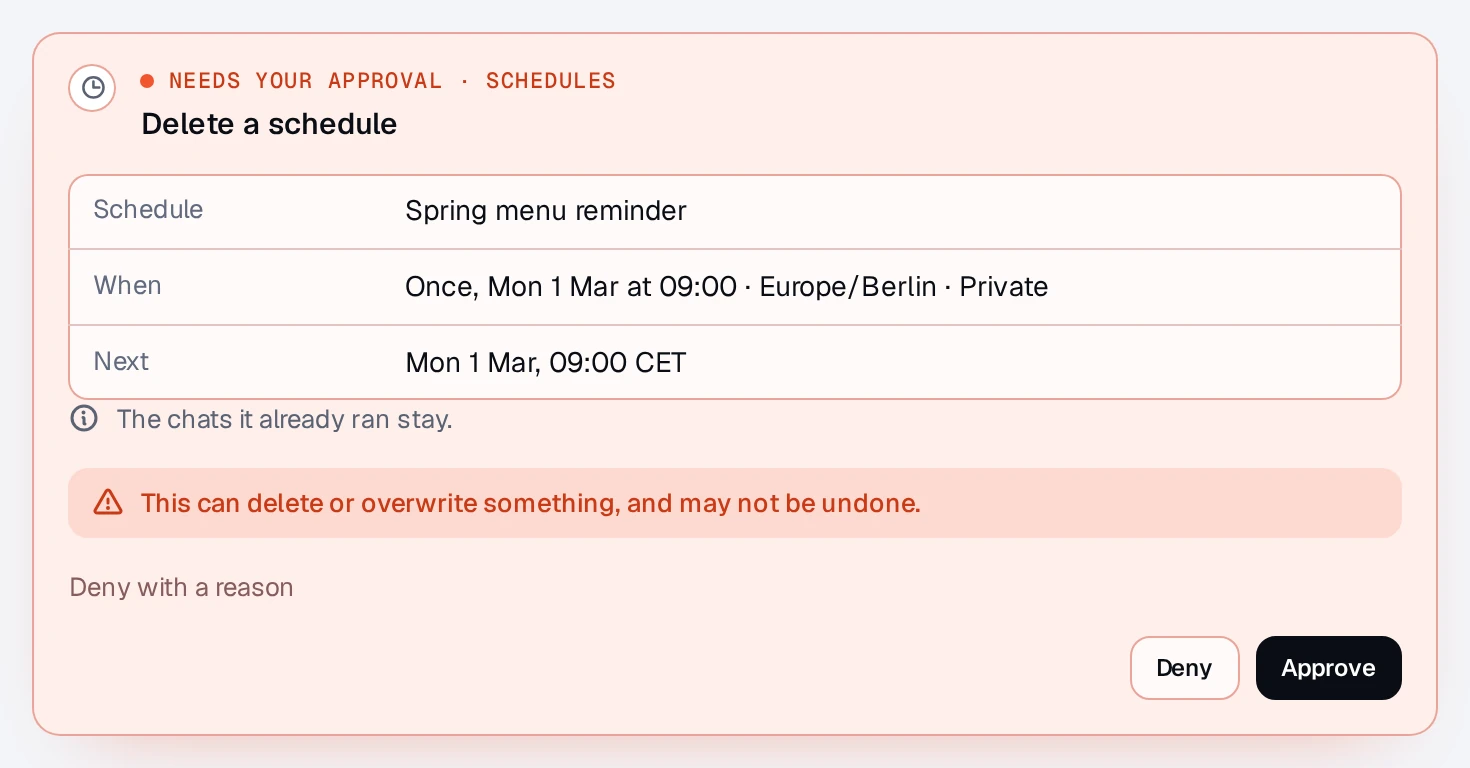
- Destructive changes: deleting, overwriting, moving something out of reach, or changing who has access. These cards carry a warning and never offer the checkbox.
- Changes that outlive the chat, such as creating a schedule.
- After a chat has read files from your computer, only changes on your computers can be allowed for the rest of it, so local text can't leave through another service without you seeing it.
Who approves in a project chat
Only the person whose question led to the change can approve or deny it, because it runs with their account. Everyone else in the project sees whose approval it's waiting for, not the preview.
Every decision is logged, without its contents. Owners and admins can turn changes off for the whole organization in Settings ▸ People (Connectors can make changes).
Questions? Click the chat bubble in the corner of the app, or write to support@chatwithwork.com.